> For the complete documentation index, see [llms.txt](https://developer.branta.pro/llms.txt). Markdown versions of documentation pages are available by appending `.md` to page URLs; this page is available as [Markdown](https://developer.branta.pro/setup/platforms/payment-gateway-options/btcpay-server.md).

# BTCPay Server

[Official Plugin Link](https://plugin-builder.btcpayserver.org/public/plugins/branta): <https://plugin-builder.btcpayserver.org/public/plugins/branta>

{% embed url="<https://drive.google.com/file/d/1_EdWn0dtOxYfFZ4ZB0Ptaf2INf08FY8m/view?usp=share_link>" %}

## 1. Install Branta

[*Voltage*](https://www.voltage.cloud)*,* [*BTCPay Italia*](https://www.btcpayserver.it)*,* [*Bitcoin Aruba*](https://btc.aw) *and* [*pay.branta.pro*](https://pay.branta.pro/) *all have Branta installed already. If you run a hosted BTCPay Server and have Branta installed, open a* [*PR*](https://github.com/BrantaOps/branta-network) *to be added to our* [*Network Page*](https://branta.pro/network?tab=btcpay_server)*.*

* Login to BTCPayServer and click "Manage Plugins" on the lefthand side.

{% hint style="warning" %}
Note: If you don't see "Manage Plugins," you'll need an admin to do this for you.
{% endhint %}

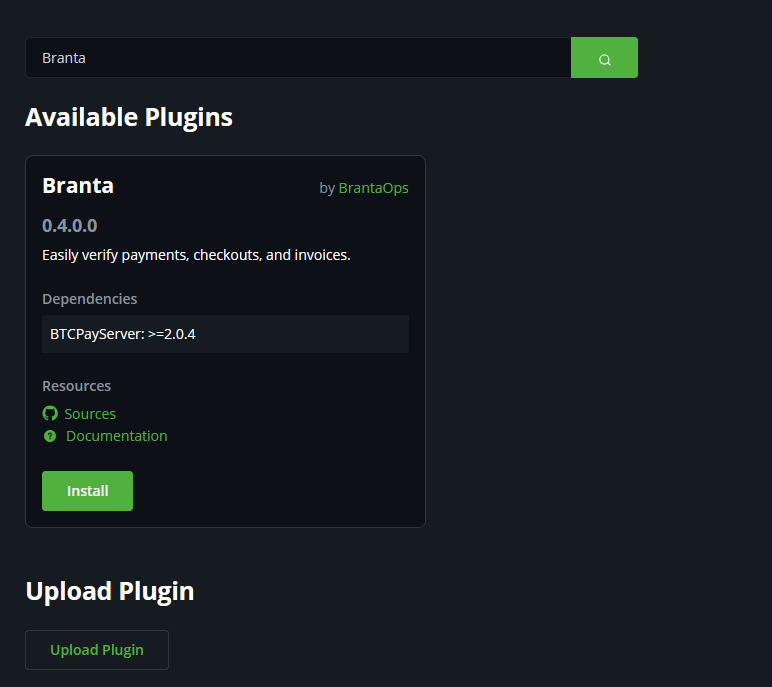
* Search `Branta` and click `install`.

<figure><img src="/files/Aov76GiOBxAlicUv512K" alt=""><figcaption></figcaption></figure>

* Your BTCPay Server will restart.
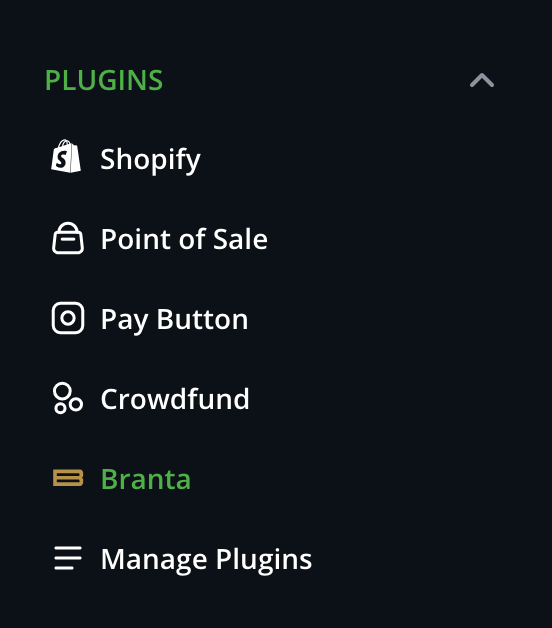
* The Branta plugin appears.

<div align="center"><img src="/files/9sUfclluCmgfVtABknhA" alt=""></div>

## 2. Enter API Key

* Wait for the server to restart
* Under plugins, click `Branta`.
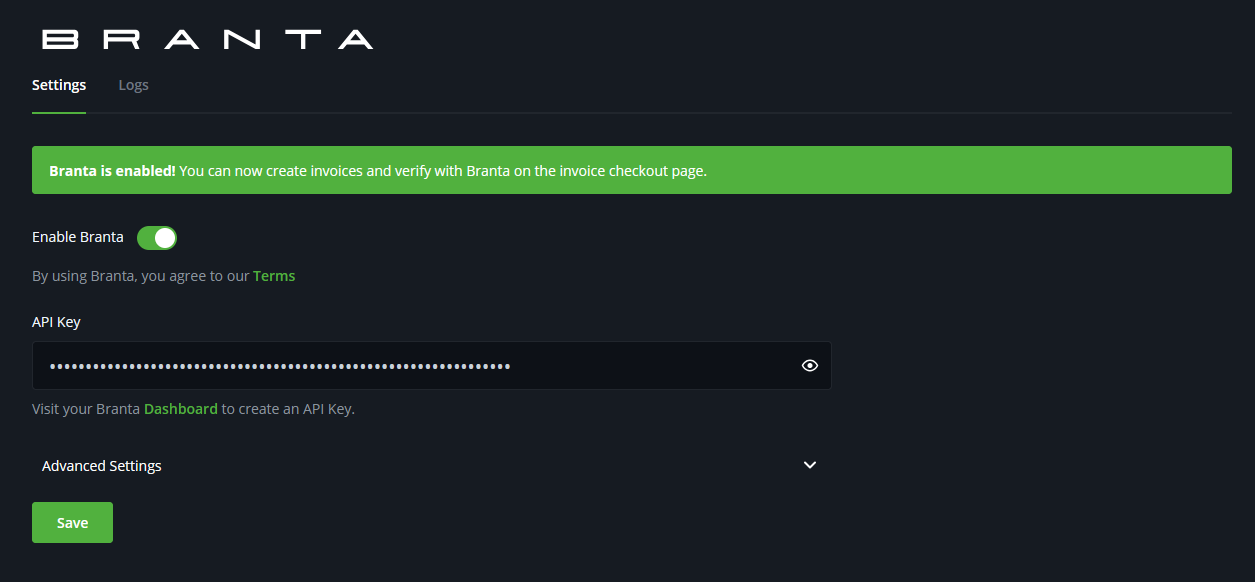
* Copy the API Key from your Branta Dashboard to the API Key settings field.
* Click `Save`.

## 3. Enable Branta

* Toggle Branta on by clicking <kbd>Enable Branta</kbd>.
* To confirm Branta is wired up, issue a test invoice and look for the `Click to verify with Branta` link in checkout — covered in step 4.

<figure><img src="/files/53wLUSQRqRxuSIqpHVJN" alt=""><figcaption></figcaption></figure>

## 4. Advanced settings (optional)

Expand the **Advanced** section on the settings page if you need to change defaults:

* **Enable Staging** + **Staging API Key** — point the plugin at `staging.guardrail.branta.pro` for testing. Use a staging-only API key.
* **Show Checkout Info on Verification Page** — include the invoice description on the Branta verify page.
* **Allow Guardrail Verification for** — TTL for each published destination. Options: 30 minutes (default), 4 hours, 1 day, 7 days.
* **Show Verify Link at Checkout** — toggle whether the `Click to verify with Branta` link appears on invoices.

## 5. Verify Branta is running

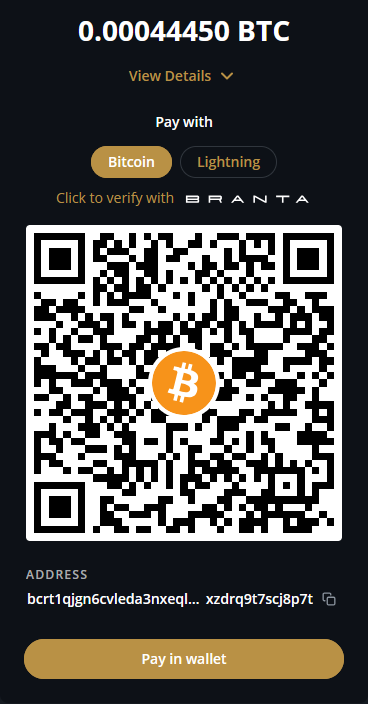
* Make a test invoice and you'll see `Click to verify with Branta`.
* You can also [QR scan](https://scan.branta.pro/scan) from your phone or compatible wallet

<figure><img src="/files/nZjFFCKkKi226dXGOvoM" alt=""><figcaption></figcaption></figure>


---

# Agent Instructions
This documentation is published with GitBook. GitBook is the documentation platform designed so that both humans and AI agents can read, navigate, and reason over technical content effectively. Learn more at gitbook.com.

## Querying This Documentation
If you need additional information that is not directly available in this page, you can query the documentation dynamically by asking a question.

Perform an HTTP GET request on the current page URL with the `ask` query parameter:

```
GET https://developer.branta.pro/setup/platforms/payment-gateway-options/btcpay-server.md?ask=<question>
```

The question should be specific, self-contained, and written in natural language.
The response will contain a direct answer to the question and relevant excerpts and sources from the documentation.

Use this mechanism when the answer is not explicitly present in the current page, you need clarification or additional context, or you want to retrieve related documentation sections.